

How to Set Up Google Workspace for SMTP Delivery
This tutorial will help you prepare your Google Workspace account via the Google API for SMTP delivery. This will allow you to send WordPress emails from your main email address or a Gmail alias, and it’s more secure than connecting to Gmail using SMTP credentials. The set-up steps are more technical than other options, so we created a detailed guide to walk you through the process.
1. Creating a Web App in Your Google Account
First you’ll need to use your Google account to create a web application. This process doesn’t require any coding, and we’ll show you exactly what to do.
In the new tab or window you’ve opened, you’ll need to log into your Gmail account and access Gmail’s application registration.
Note: Before continuing, be sure to sign out of all other Google accounts besides the account you’ll be using for the SMTP setup.
Also, if you’re using Google Workspace, make sure that the Google account you use has permission to send emails (in other words, access to its own inbox).
If it’s your first time using Google Cloud Console, you may be asked to agree to the Terms of Service. Go ahead and agree to the Terms of Service, and select your country from the Country of residence dropdown menu.
After you’ve configured each of these settings, go ahead and click the Agree and continue button to move on to the next step.
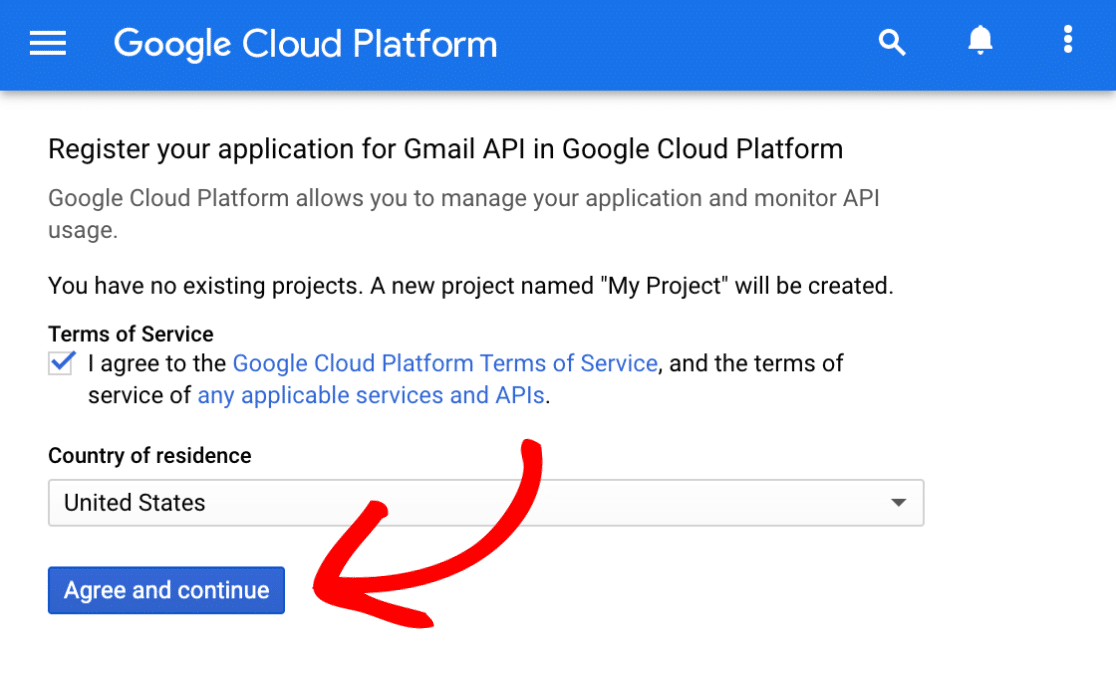
If you’ve logged into the Google Cloud Console before, you’ll likely bypass the Terms of Service. Instead, you’ll see a form named Register your application for Gmail API in Google Cloud Platform.
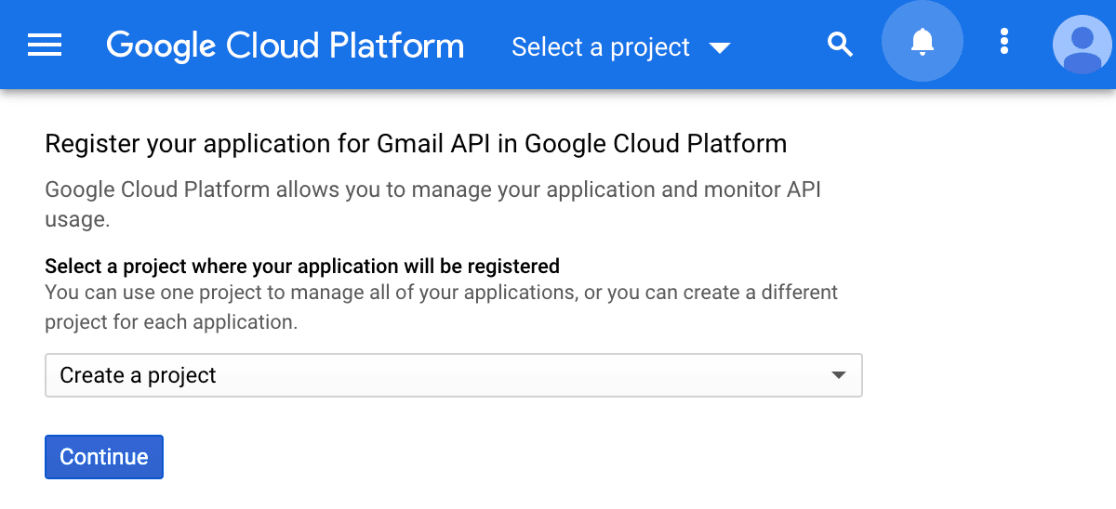
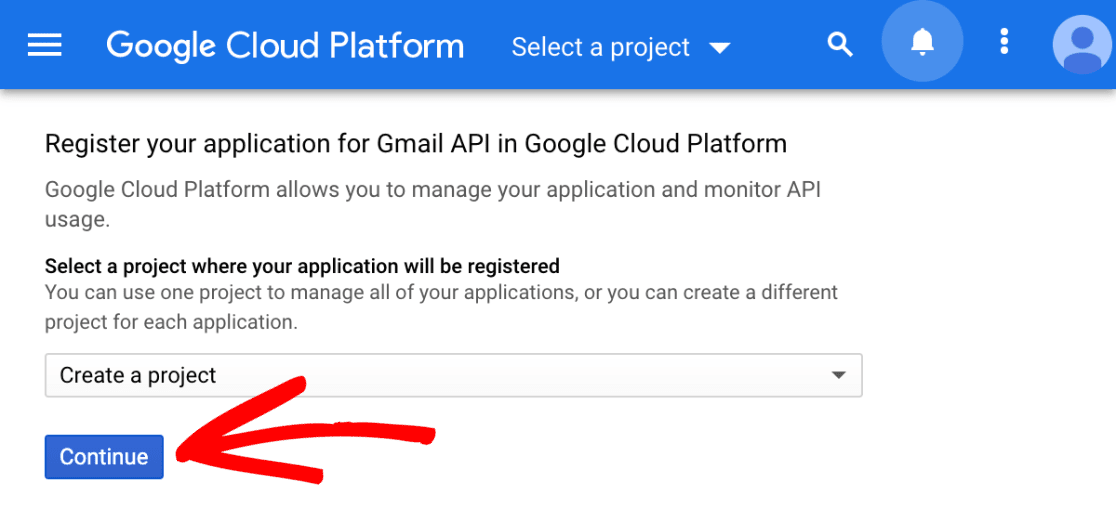
For the Select a project where your application will be registered step, a new project will automatically be created for you in Google if you haven’t previously created one. Click on the Continue button.
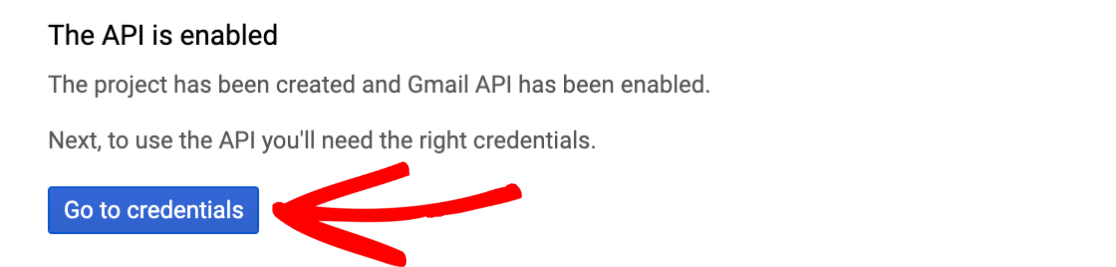
Once you’ve completed either of the steps above, you’ll see a confirmation message that says The API is enabled. To move forward to the setup page, go ahead and click the Go to credentials button.
2. Creating Your Application’s Credentials
On the next page, you’ll be asked a few questions to help Google determine the Credential Type you need.
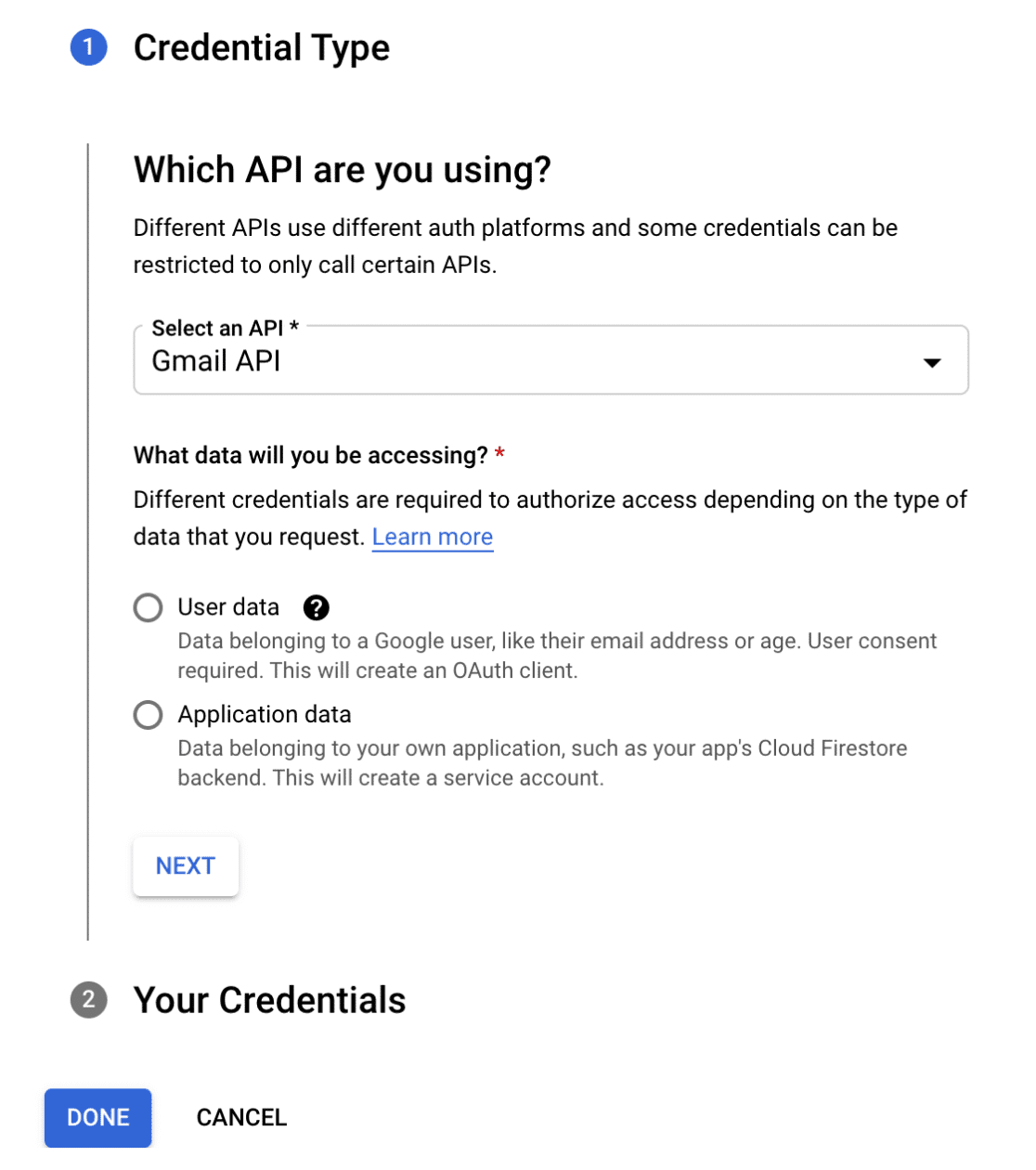
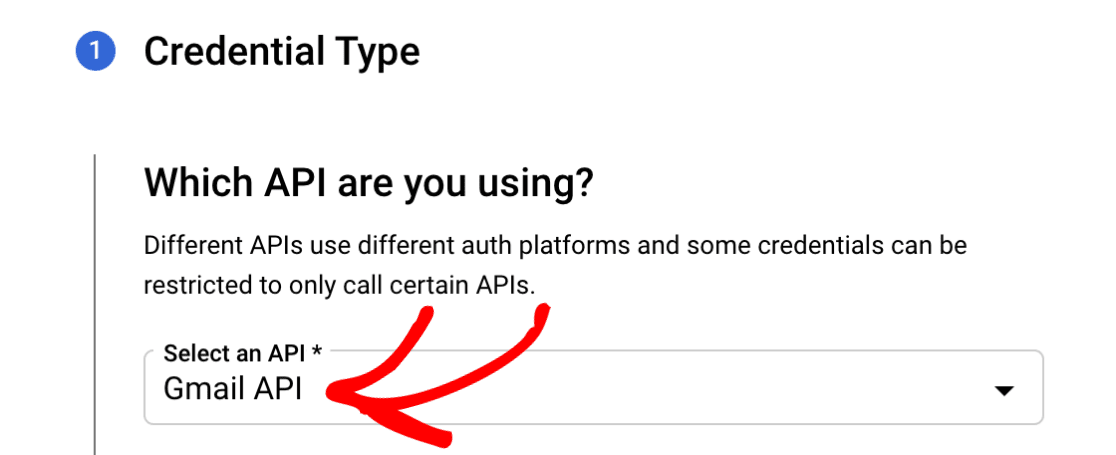
In the Select an API dropdown menu, make sure the Gmail API is selected.
Note: If you don’t see an option for the Gmail API in the dropdown, be sure that you have the Gmail API enabled for your account.
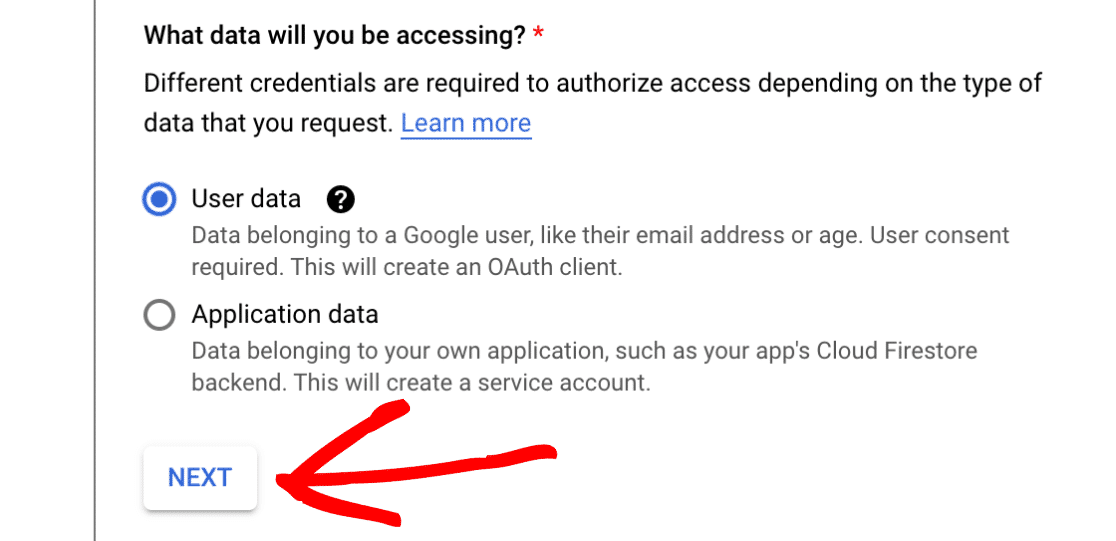
Next, under the What data will you be accessing? section, select the User data option. Then, click the NEXT button to proceed to the next step.
3. Configuring Your OAuth Consent Screen
In this second step, Google will ask for some basic App information.
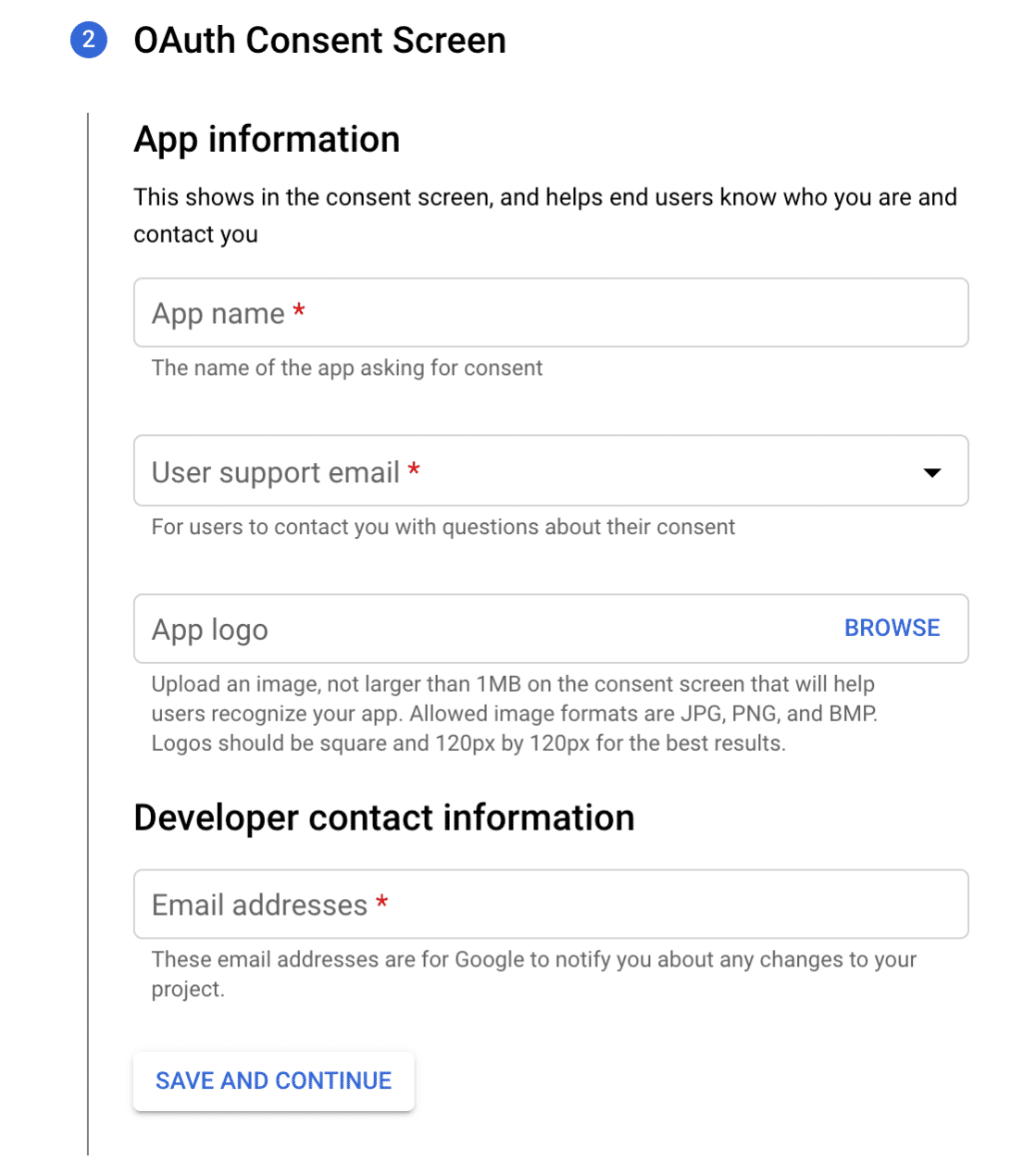
This section is more for personal use, since nobody else will be using your app. However, some fields are still marked as required:
- App name: Input the app name of your choice, for example: Pattie’s App
- User support email: Select your email address
- App logo: If you’d like, you can upload a logo for your app
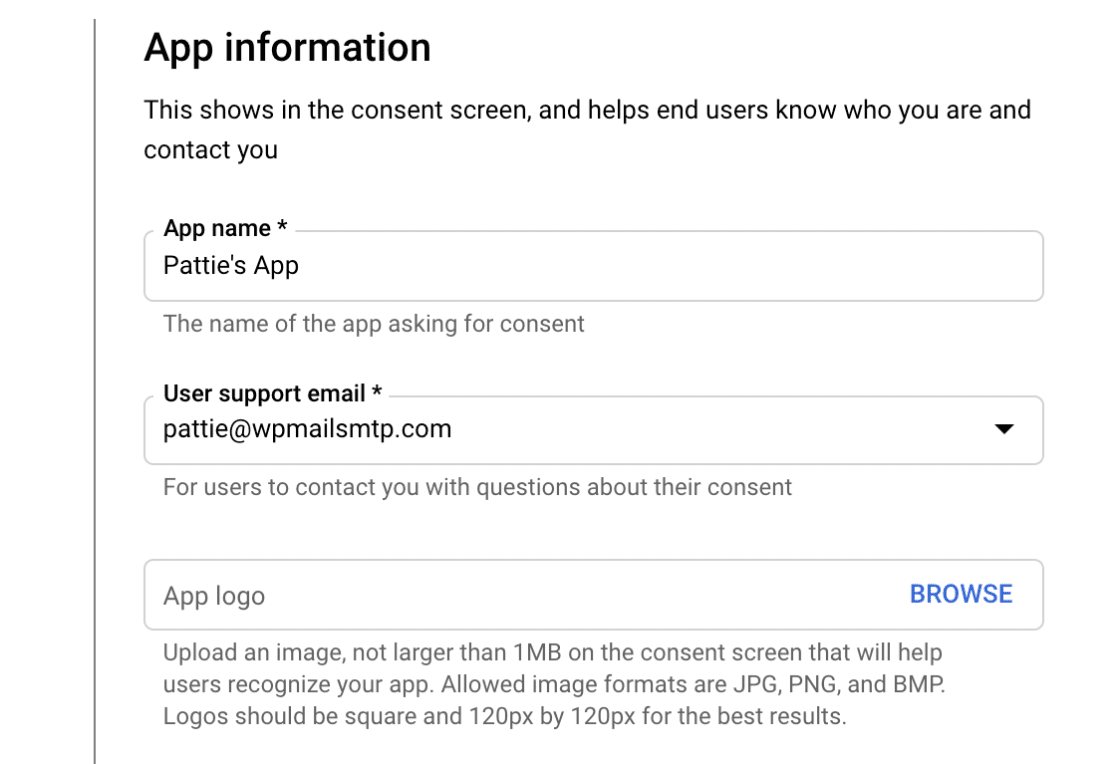
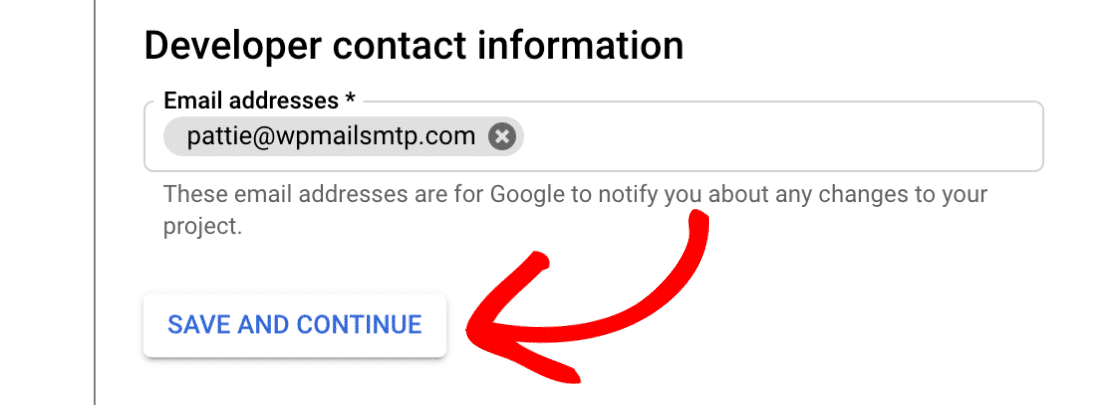
Finally, add your email address in the Email addresses field. Then, when you’re ready, click on the SAVE AND CONTINUE button to proceed to the next step.
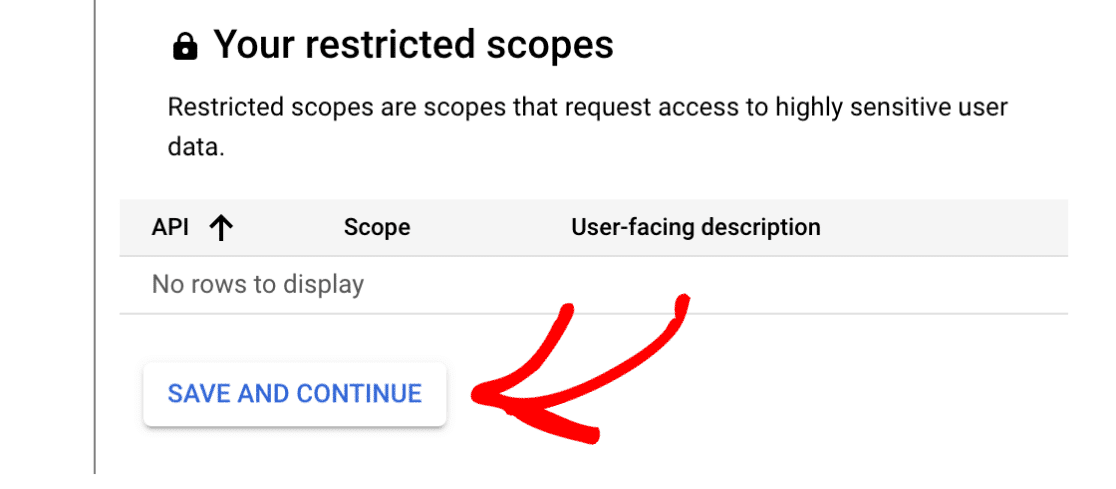
4. Configuring Scopes (optional)
This is an optional step that we will be skipping for this tutorial. Scroll down to the end of the Scopes section and click on the SAVE AND CONTINUE button to proceed.
5. Setting Up Your OAuth Client ID
Next, we’ll need to fill out some information about our OAuth Client ID.
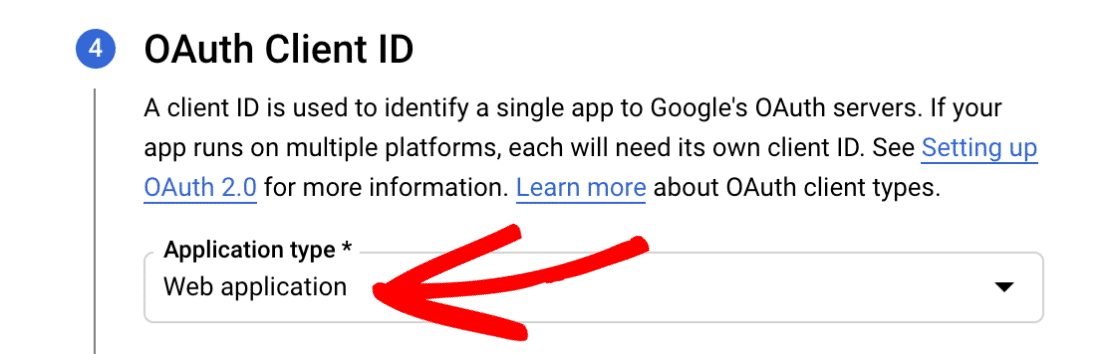
In the Application type dropdown menu, select the Web application option. Once you select this option, more fields will populate.
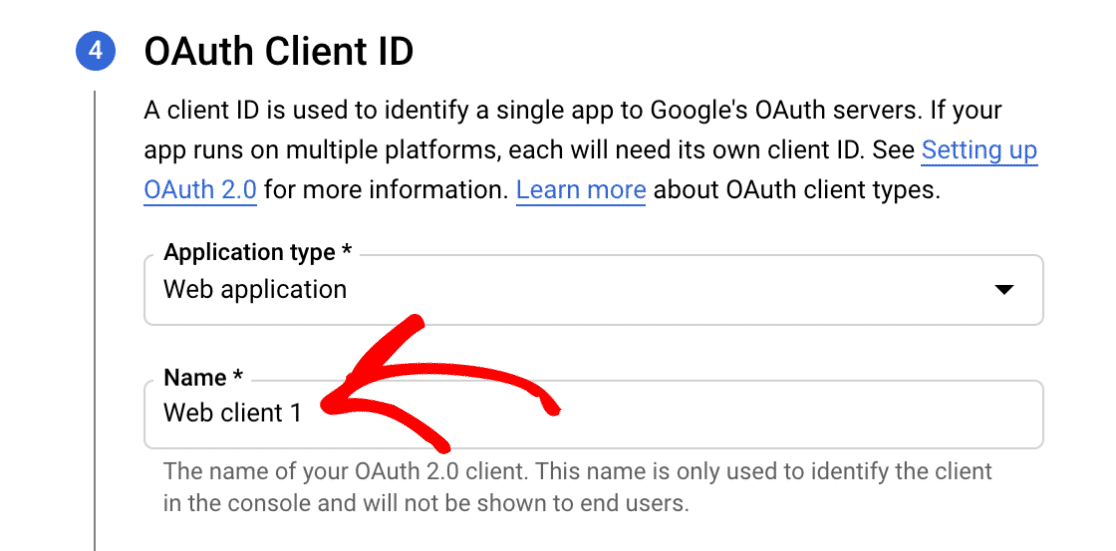
Now, you can leave the Name field as the default value or change it to something more relevant. For this example, we’ll leave the default name, Web client 1.
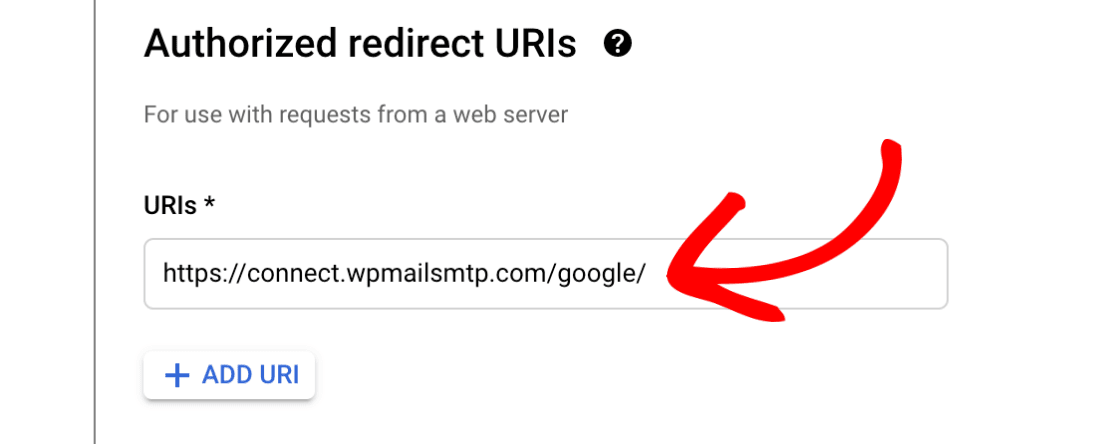
Next, go ahead and skip the Authorized JavaScript origins section and scroll to Authorized redirect URIs.
Then, click on the + ADD URI button and input the following: https://connect.wpmailsmtp.com/google/.
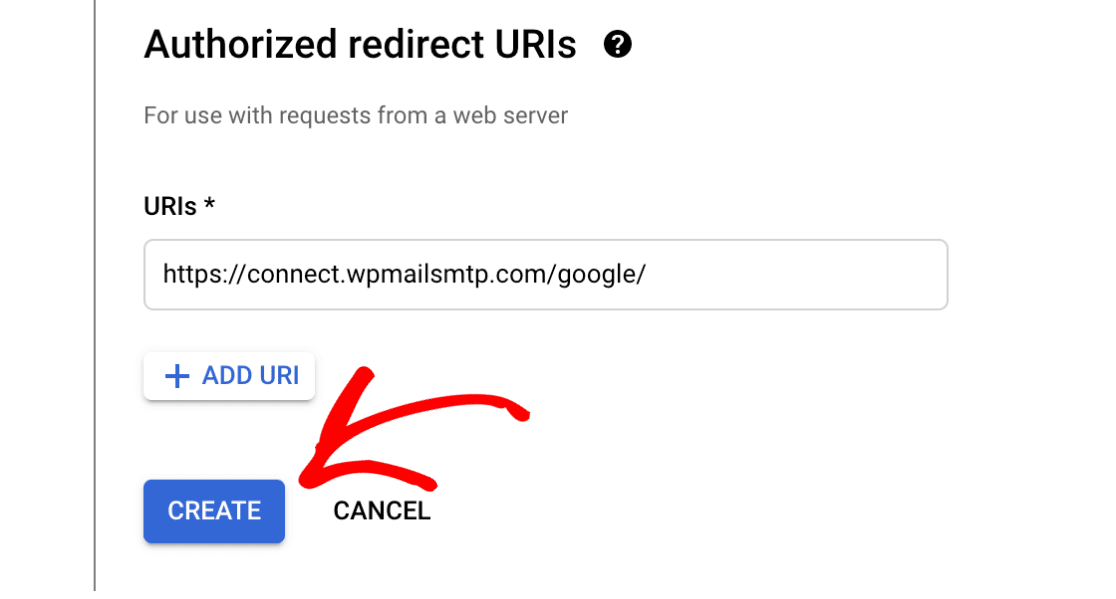
When you’re ready, click on the CREATE button to complete this step.
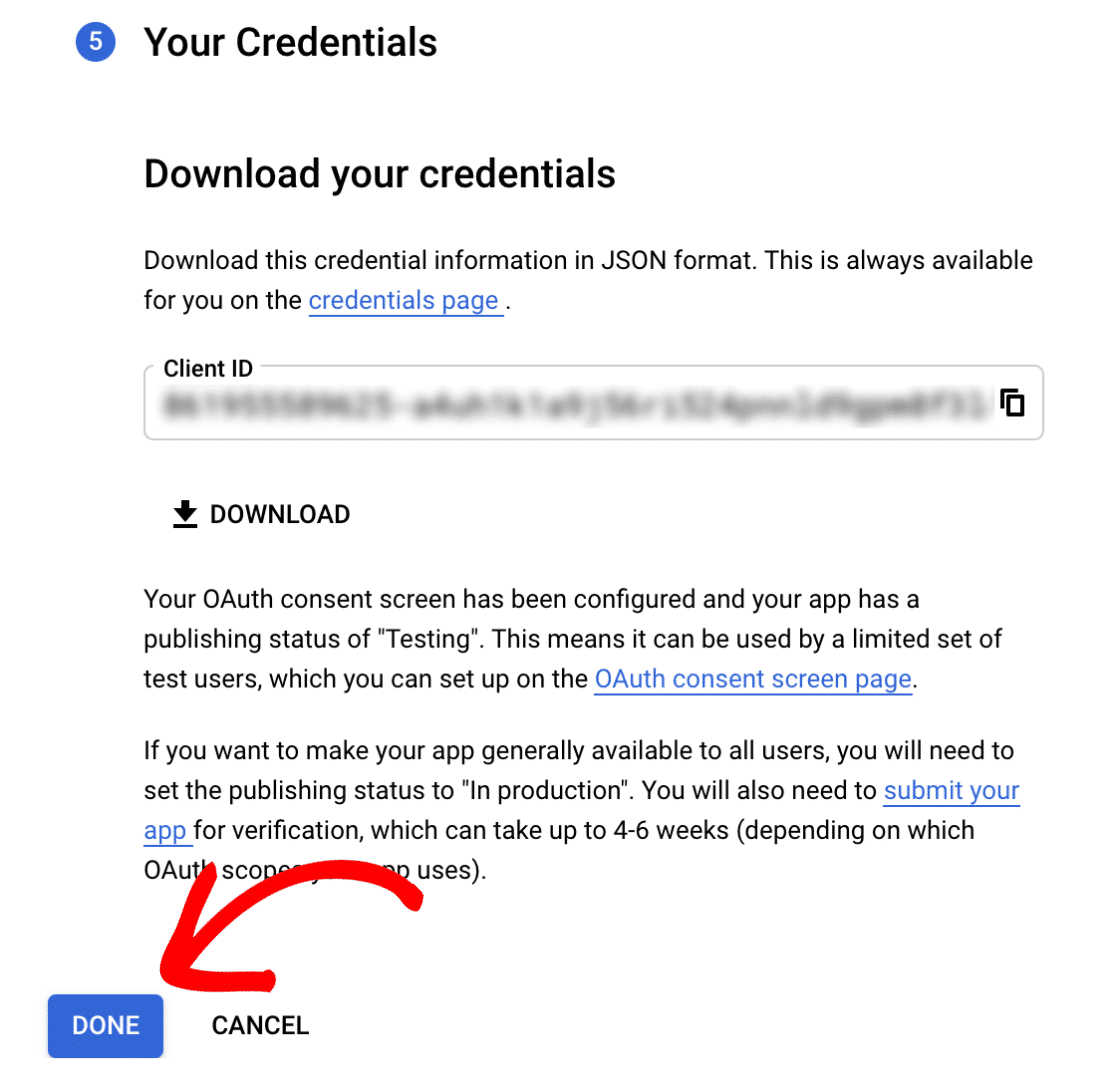
At this point, you are done with the Create credentials setup and should see your Client ID on the Your Credentials page. Don’t worry about saving or copying the Client ID, we’ll do that a bit later.
Go ahead and click the DONE button at the bottom of the page.
6. Updating the Publishing Status From Testing to Production
Note: This step is only for users with free Gmail accounts. Users with Google Workspace accounts should skip this step.
Google will put your app into testing mode by default. It’s really important that you switch to the production mode, otherwise, your app will be super limited and will not function properly.
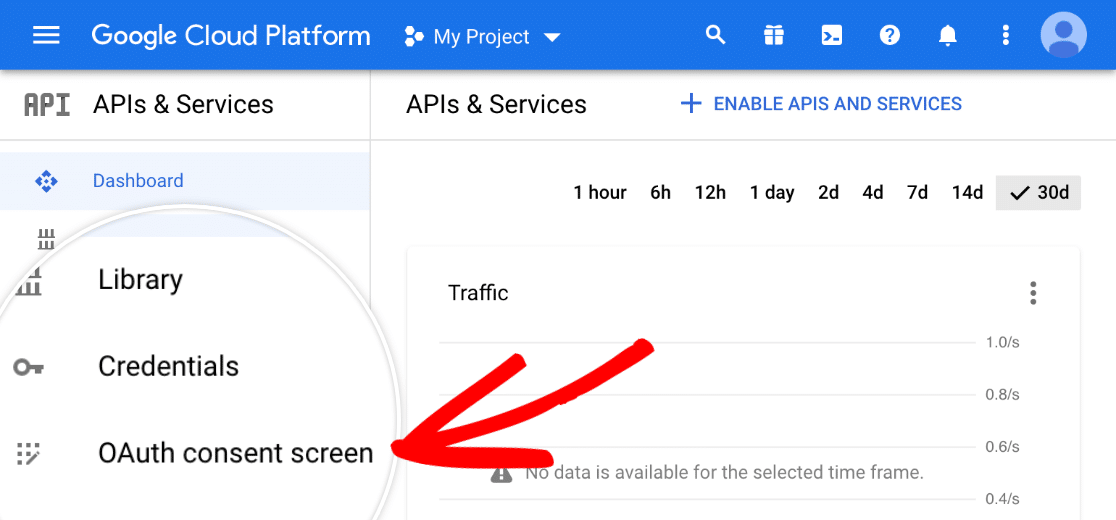
From the Google Cloud Platform dashboard, locate the menu on the left side, and click on the OAuth consent screen option.
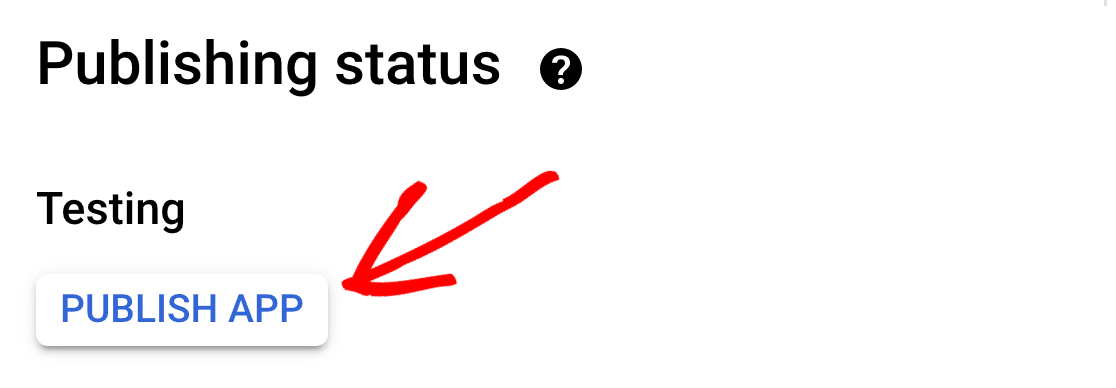
In the Publishing status section, you will see that the app is in Testing mode. Click on the PUBLISH APP button to switch it to production mode.
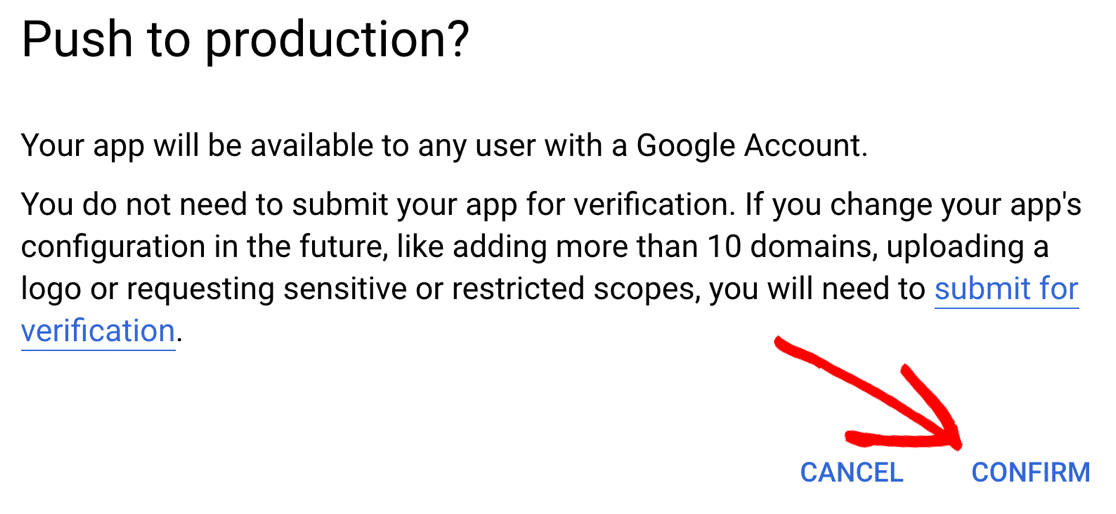
Now, a modal will appear stating that Your app will be available to any user with a Google Account.
Don’t worry, you are the only one that will have access to this app. This app will only be used in your WordPress site (in the admin dashboard area). To continue, click on the CONFIRM button.
Once confirmed, you’ll see that your app’s Publishing status is now In production.

7. Granting Permissions and providing our team with your Client ID and Client Secret.
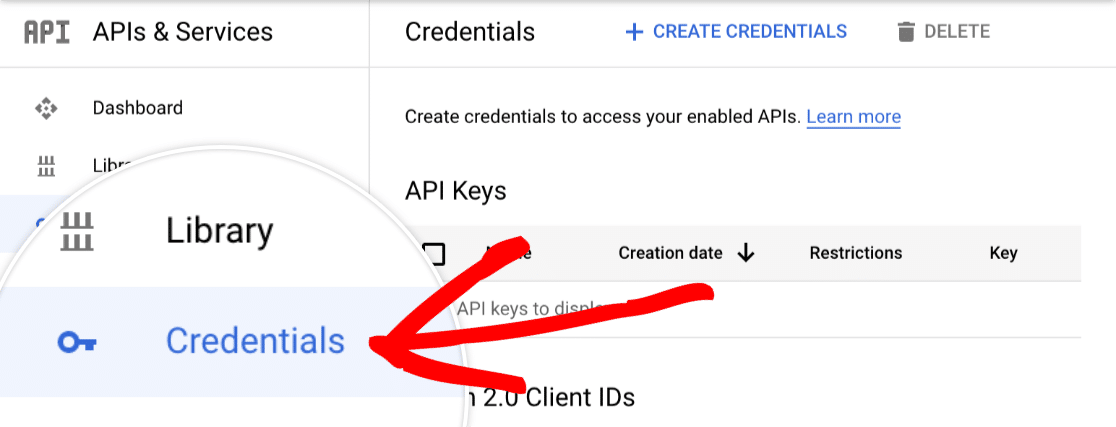
Next, in the left side menu click the Credentials option.
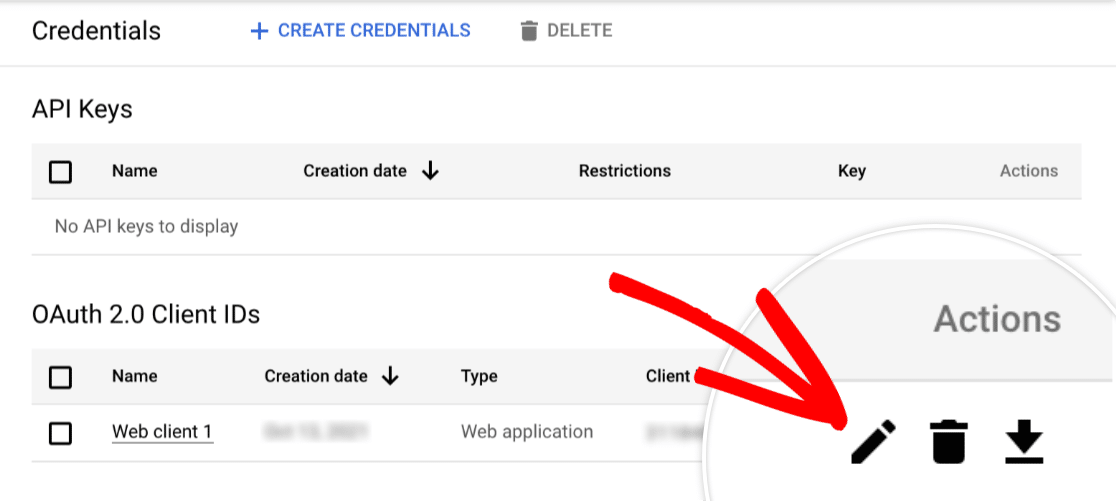
Once you’re on the Credentials page, in the OAuth 2.0 Client IDs section you can see the details of the web application you just created. To view the Client ID and Client Secret, click the pencil icon.
This will open all of the details for your app. On this page, you’ll see the Client ID and Client secret values.
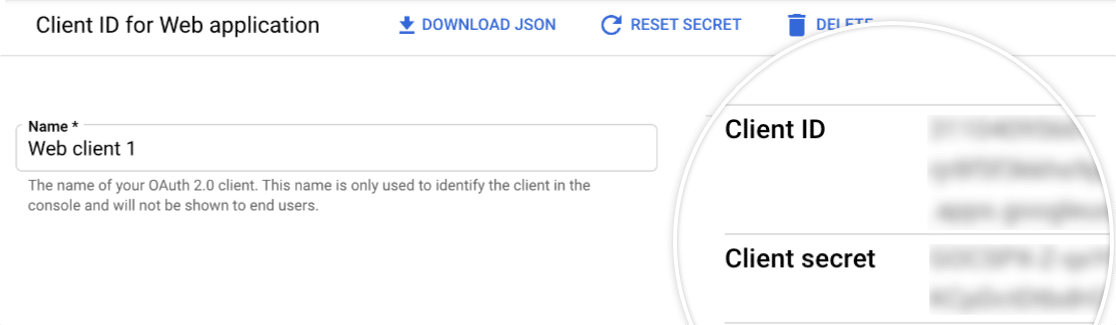
Finally, please provide our team at info@inventiva.solutions with your Client ID and Client Secret codes. They will install them on the website and finalise the configurations on the website end for you.
